
1. Open the assignment
Navigate to the assignment to access the available reporting and grading tools.
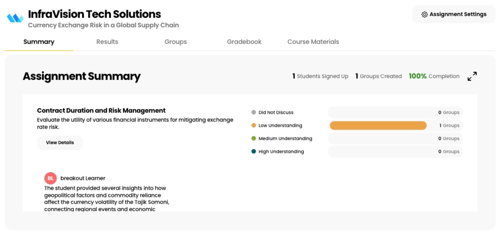
2. Review the Summary
The Summary tab provides a high-level overview of class performance, including:
- Participant questions submitted at the end of the session.
- Overall rubric outcomes across all groups.
- Class performance by rubric category.
3. Explore detailed results
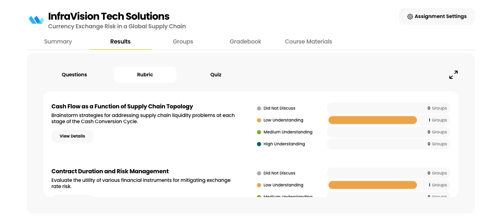
Open the Results tab to review detailed assignment outcomes.
Questions
- View all participant-submitted questions.
- Search for specific participants or groups.
Rubrics
- Review rubric performance by participant or by group.
- Switch between participant and group views.
- Filter results by performance level.
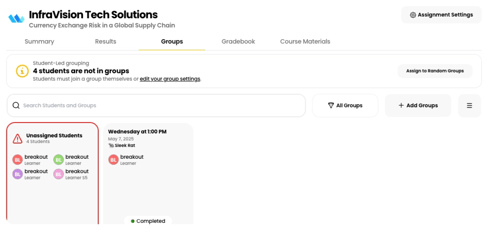
4. Manage groups
The Groups tab lets you review and manage assignment groups, including group membership and scheduling.
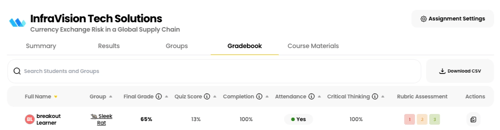
5. Review grades
Open the Gradebook tab to view each participant's performance, including:
- Quiz score
- Completion status
- Attendance
- AI-powered contribution score
You can also open an individual participant's result summary to view the same feedback and results shared with the participant after the session.
To export assignment grades, click Download CSV in the top-right corner of the Gradebook. The export also includes each Participant's group, making it easy to review or analyze results by group.
6. Review AI insights
Open the Insights tab to explore AI-generated summaries of each group's discussion, including:
- Key discussion themes.
- Learning objective performance.
- Group participation insights.
- AI chat for asking questions about what occurred during the session.
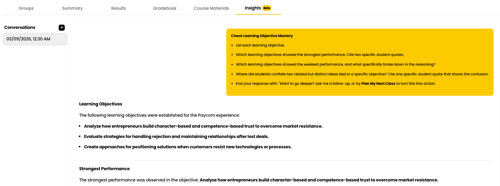
Note: AI Insights uses the session transcript to find and provide answers about the discussion. Instructors generally do not have access to full session transcripts, but can contact their Breakout Learning Account Manager if they need to review a transcript.
7. View grades in your LMS (if applicable)
If your assignment uses an LMS integration and grading is enabled, participant scores are automatically synced to your LMS gradebook.
Note: If grades do not appear in your LMS, verify that the assignment is configured for grading and that the LMS assignment has a point value greater than zero. If grading settings are changed after the assignment is created, use the Re-sync Grades option (if available) to update the LMS gradebook.