
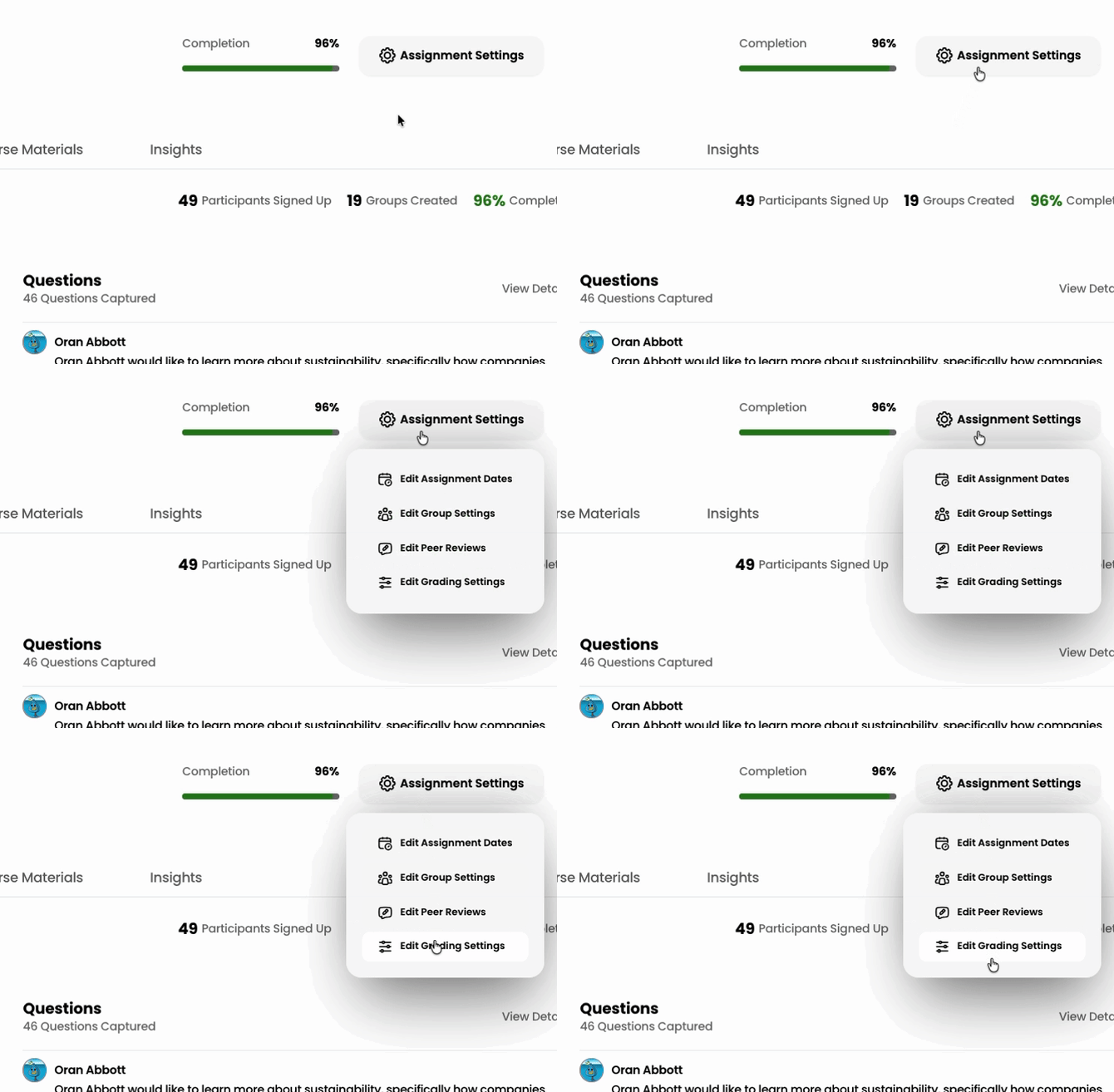
Breakout gives Instructors additional control over AI-generated grading by letting you customize how much each contribution rubric counts and how rubric score levels translate into percentage grades.
These settings are available whenever you're creating a new assignment or editing the grading settings of an existing one.
1. Open the grading settings
2. Customize AI contribution rubric weights
- In the grading popup, Locate the Contribution (AI Assessment) section and select Advanced: customize contribution rubric weights.
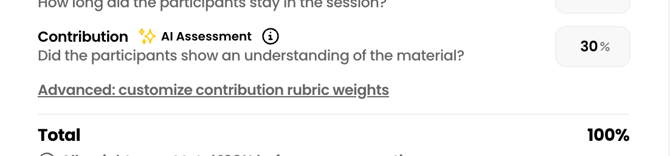
- By default, all rubrics are weighted equally. Adjust the weight of each rubric to emphasize the learning outcomes or discussion objectives that matter most for your assignment.
.png?width=670&height=466&name=image(1).png)
Note:
- All rubric weights must add up to 100%.
- Select Reset to Defaults at any time to restore equal weighting across all rubrics.
3. Configure score mapping
.png?width=460&height=365&name=image(2).png)
- Open the Score Mapping section to define how rubric score levels translate into the percentage values used for grade calculation.
Note: For each rubric, the top score level is fixed at 100%, but every other score level can be assigned a custom percentage value. - Optionally, select Save as Defaults to save your settings as Instructor Defaults. You can manage your defaults anytime from Settings → Instructor Defaults.
Note: Updating your Instructor Defaults only affects new assignments created afterward
.png?width=539&height=530&name=image(3).png)