Role Requirements
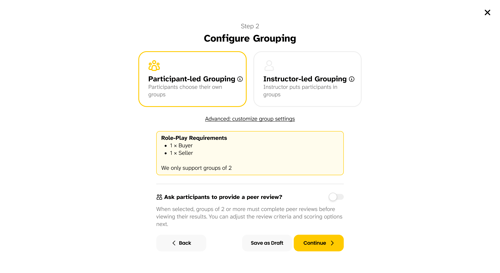
Negotiation experiences use defined participant roles (e.g., Buyer and Seller). These roles determine what materials each student sees and how groups must be structured.
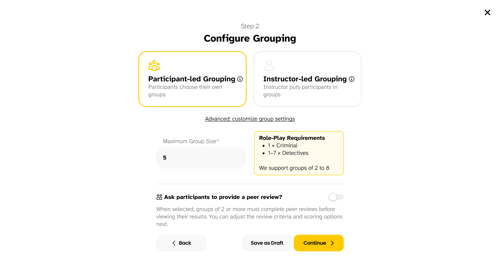
When setting up grouping for the assignment, the system will automatically display the required roles and group size rules based on the experience configuration.
For example:
- 1 Buyer + 1 Seller → groups of 2
- 1 Criminal + 1–7 Detectives → groups of 2–8
If the group size does not meet the role requirements, the system will block the configuration until it is corrected.
Assigning Roles to Students
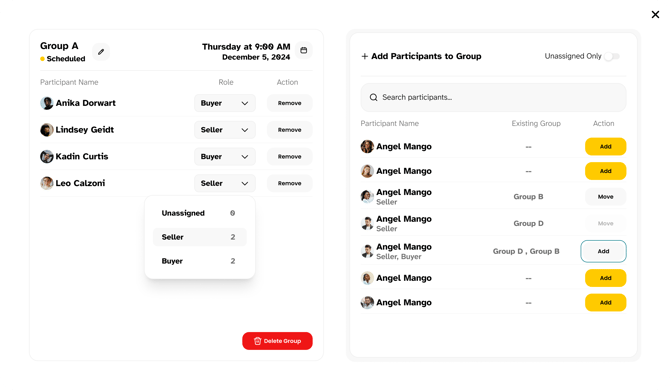
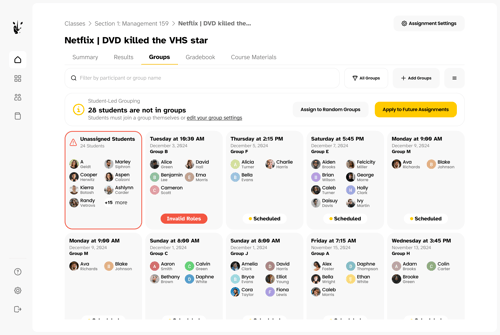
After groups are created, instructors can manage roles directly in the Groups tab of the assignment.
For each group:
- A Role column appears next to each student.
- You can assign or change a student’s role using the dropdown menu.
- A summary below the group shows how many participants are assigned to each role.
If roles are missing or unbalanced, the system will flag the issue and prevent the session from starting until it is fixed.
Automatically Fix Role Issues
If roles are incorrect (for example, a group has two Buyers and no Seller), you can click:
Auto Fix Role Issues
This will automatically rebalance participant roles according to the required configuration.
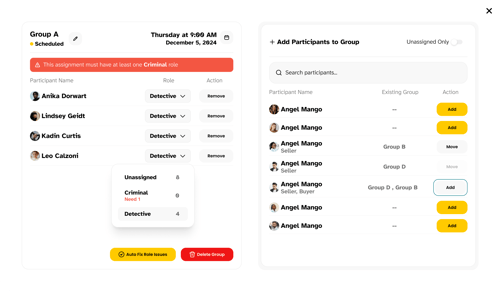
Groups that still violate role requirements will be labeled Invalid Roles until corrected.
What Students See
Once a student joins a group and receives a role:
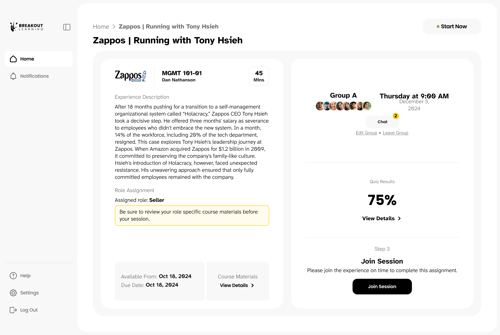
- Their role appears clearly on the assignment page.
- They are prompted to review role-specific materials before the session.
- They will only see materials relevant to their role (e.g., Buyer or Seller role sheet).
If Roles Are Incorrect
If the group has an invalid role configuration:
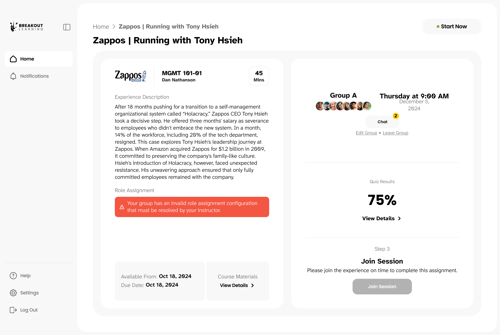
- Students will see an error message.
- The Join Session button will be disabled.
- They will be instructed to wait until the instructor fixes the roles.