
Note: The Import Groups (CSV) option will appear if: No group has started the assignment yet. Once any group begins the session, this option will no longer be available. Participants must already exist in the class to be assigned. If a participant is not found, they will be skipped. You can re-upload a CSV to update groups (if no group has already started the assignment).
Supported CSV Formats:
Option 1: Canvas Export
- Download directly from Canvas
- Instructions are provided in the modal
Option 2: D2L Brightspace Export
- Download directly from D2L
- Instructions are provided in the modal
Option 3: Custom CSV
You can also upload a simple CSV with:
- group_name
Each row should map a student to a group.
Step 1: Navigate to Your Course
- Open your desired assignment
- Click on the groups tab
- Open the menu (⋯)
- Click Import Groups (CSV)
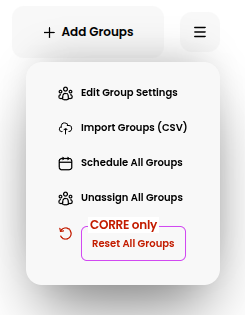
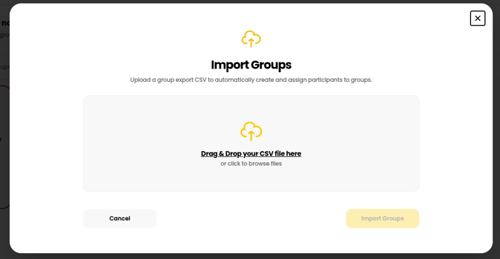
Step 2: Upload your CSV File
- You can drag and drop or click to browse
Step 3: Review Detected Groups
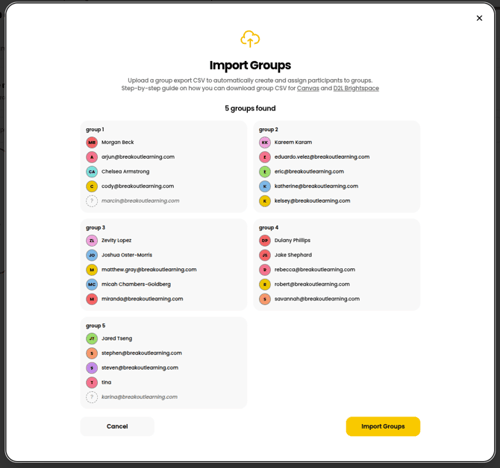
Step 4: Click Import Groups
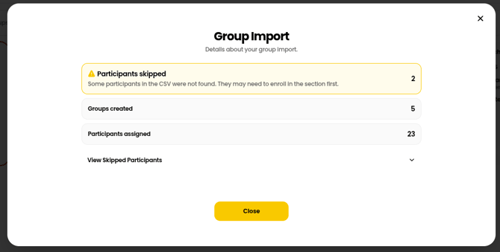
Step 5: After Upload
- Groups are created based on group name
- Participants are assigned based on email match
- You’ll see a summary including:
- Groups created
- Participants assigned
- Any skipped participants (email not found)
To assign the same grouping to all assignments, go to the Module Grouping page. Once all participants have been grouped, a yellow confirmation bar will appear indicating that these same groups will automatically be applied to future assignments.
Troubleshooting Tips
- Make sure emails in the CSV match Participant emails exactly
- Ensure no groups have started the assignment already
- Use the provided Canvas/D2L guides for correct export format