
Configuring the Activity in Breakout
D2L Brightspace offers both a New Content Experience and a Classic Content Experience, and Instructors can select which experience they prefer to use. The steps for adding and configuring a Breakout activity differ slightly between the two experiences. Follow the instructions below for the Content Experience you are using.
New Content Experience
- Navigate to the course's Content tab.
- Choose a module or create a new one.
- Click Add Existing.
- Select Breakout Learning.
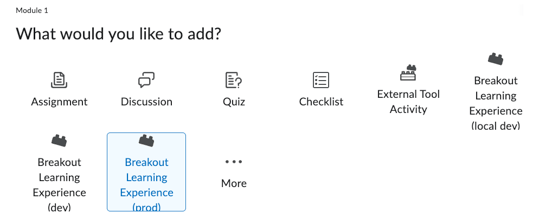
- If Breakout Learning is not displayed, click More.
- Under Third Party, select Breakout Learning.
Classic Content Experience
- Navigate to the course's Content tab.
- Choose a module or create a new one.
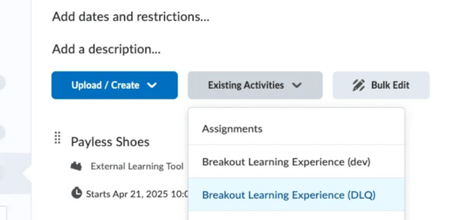
- Click Existing Activities > Breakout Learning.
Complete the Breakout Setup
The remaining setup steps are the same in both versions of D2L.
- After clicking Breakout Learning, a setup screen will open inside D2L.
- Choose the activity/session you want participants to complete.
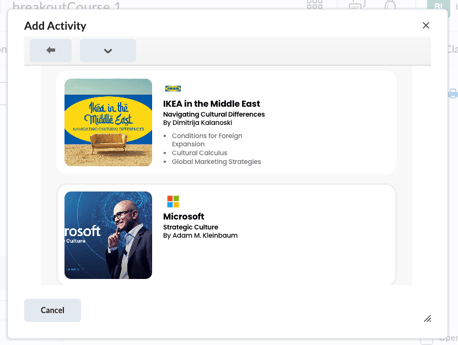
- Click Add to D2L.
- Set Grouping and Grading configurations.
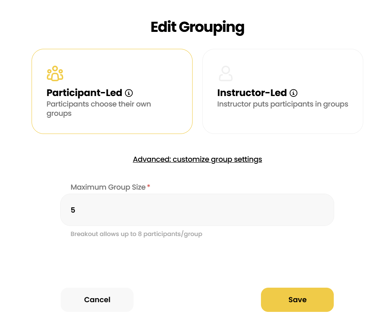
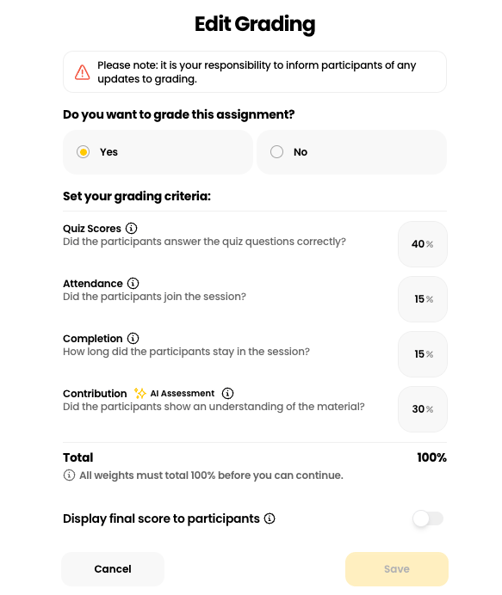
- Click Add to Class to finalize.
Setting Activity Details in D2L
The steps for setting assignment dates and grade items differ depending on which D2L Content Experience your course uses.
New Content Experience
- After configuring the activity in Breakout, return to the Content module.
- Click the Breakout activity.
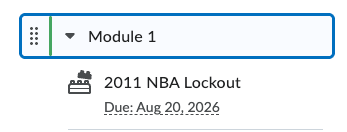
- Click Edit Activity.
- Set the Due Date and any required Availability Dates & Conditions.
- If grading was enabled for the Breakout assignment, click Add and Manage Grade Items and select or create the appropriate Grade Item.
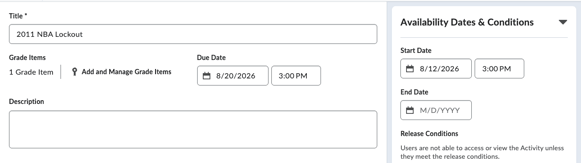
- Click Save and Close to return to the assignment.
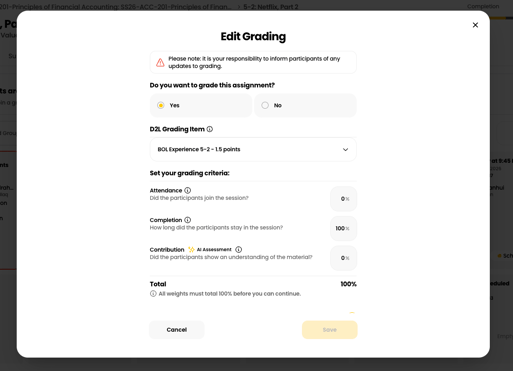
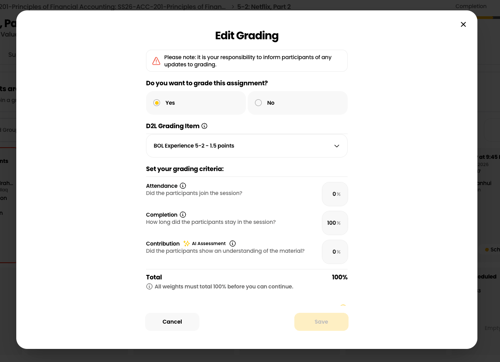
- The grade item can also be changed manually later by selecting a different option from the D2L Grade Item dropdown in the Edit Grading Settings modal under Assignment Settings within the Breakout activity.
Classic Content Experience
- After configuring the activity in Breakout, return to the Content module.
- Click the Breakout activity.
- Add assignment dates under Activity Details and click Update.
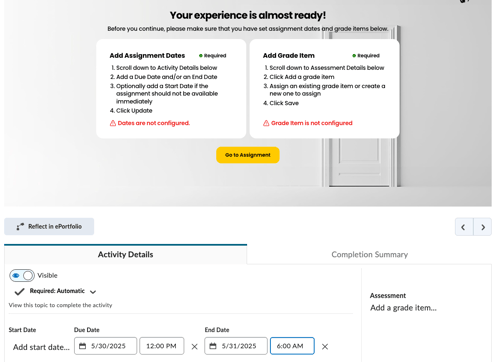
- If grading was enabled for the Breakout assignment, add a Grade Item and click Save.
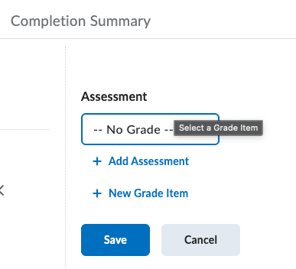
- Click Go to Assignment in the Breakout window.
- The grade item can also be changed manually later by selecting a different option from the D2L Grade Item dropdown in the Edit Grading Settings modal under Assignment Settings within the Breakout activity.
Note: D2L only sends the assignment data to Breakout Learning when the assignment is first opened in D2L by the Instructor or a Participant. We recommend that the Instructor open the assignment after setup to ensure the assignment data is sent to Breakout Learning before Participants begin accessing it.