
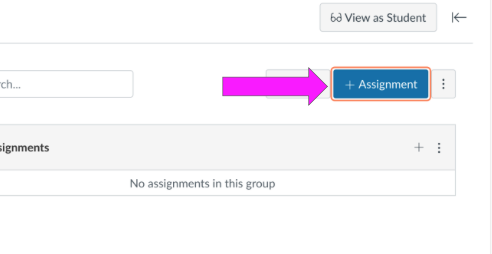
- Navigate to Canvas Assignments and click + Assignment.
- Under Submission Type, select External Tool.
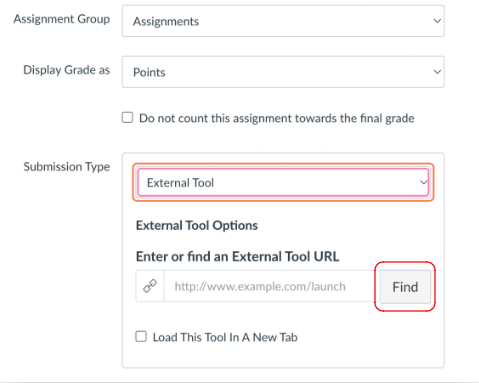
- Click Find, then select Breakout Learning.
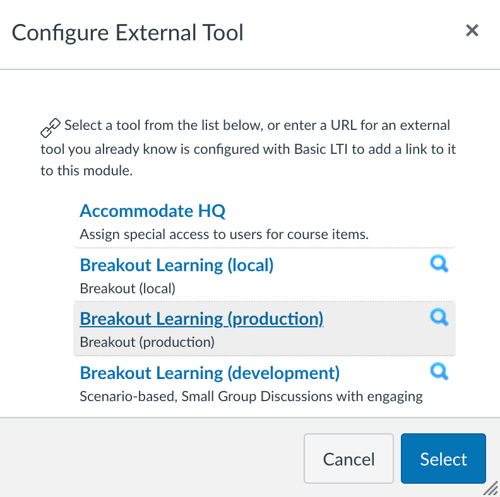
- The Breakout Learning catalog opens inside Canvas.
- Browse and select an experience, then click Add to Canvas.
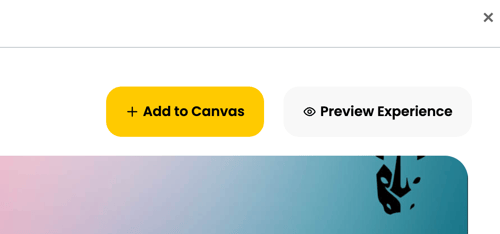
- Select Add to Class.
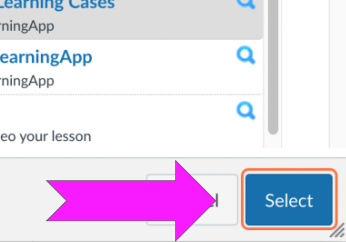
- Click Select to save the external tool selection.
- Configure Canvas grading settings (points, due dates, etc.).
- Due Date or Available Until Date must be set on Canvas.
- If it's a graded assignment, ensure the assignment has a point value greater than 0 for grades to appear in the Canvas Gradebook.
- Click Save & Publish to activate the assignment.
Note: Canvas only sends the assignment data to Breakout Learning when the assignment is first opened in Canvas by the Instructor or a Participant. We recommend that the Instructor open the assignment after setup to ensure the assignment data is sent to Breakout Learning before Participants begin accessing it.