
Overview
Breakout Learning allows Instructors to configure how each assignment is graded based on quiz performance, attendance, completion, and AI-assessed contribution.
Grading settings are available:
- During assignment creation in the Configure Grading step.
- At any time by editing the grading settings of an existing assignment.
Instructors can:
- Configure the weight of each grading category.
- Customize AI contribution rubric weights.
- Configure how AI rubric scores map to percentage grades.
- Choose whether Participants can view their final assignment score.
Grading Categories
Each assignment can be graded using one or more of the following categories:
Quiz Scores
Measures whether Participants answered the pre-session quiz questions correctly.
Attendance
Measures whether Participants joined the discussion session.
Completion
Measures how long Participants remained in the discussion session.
Contribution
Measures how well Participants demonstrated an understanding of the material during the discussion using automated rubric evaluations.
Each category is assigned a percentage weight, and the combined total of all enabled categories must equal 100% before the grading configuration can be saved.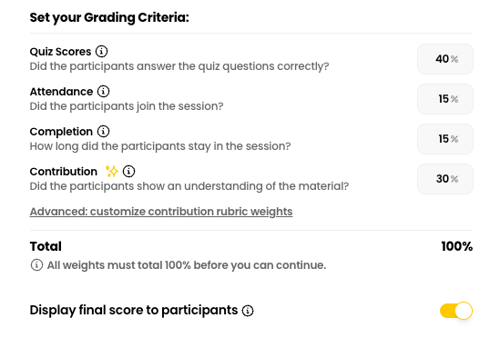
Display Final Scores to Participants
The Display final score to participants setting controls whether Participants can view their overall assignment score after grading is complete.
- Enabled: Participants can view their final assignment score in their Breakout Learning results.
- Disabled: Final scores remain visible only to Instructors.
This setting can be updated at any time by editing the assignment's grading settings.
Customize Contribution Rubric Weights
Each experience contains one or more AI contribution rubrics that evaluate different learning objectives during the discussion.
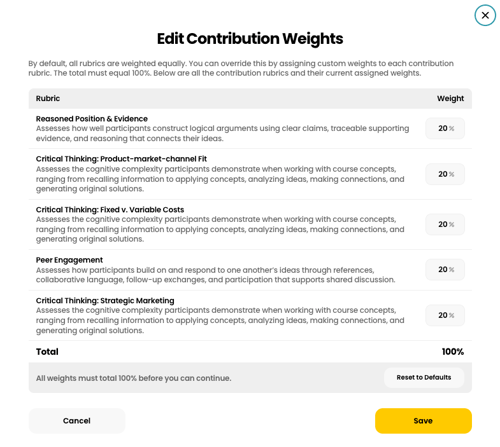
By default, all contribution rubrics are weighted equally. If you'd like certain learning objectives to have a greater impact on the overall Contribution score, you can customize the weight assigned to each rubric.
Select Advanced: customize contribution rubric weights beneath the Contribution grading category.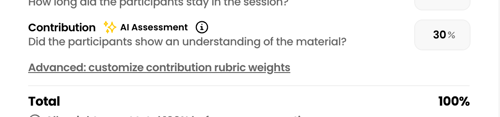
The dialog displays every contribution rubric included in the experience along with its current weight.
When configuring rubric weights:
- All contribution rubric weights must total 100%.
- Select Reset to Defaults to restore equal weighting across all contribution rubrics.
- Changes apply only to the current assignment.
Customizing contribution weights allows you to emphasize the learning outcomes that matter most for a particular discussion.
Configure Score Mapping
Each contribution rubric is evaluated using the grading scale associated with the experience. Score Mapping determines how those rubric ratings are converted into percentage values used during grade calculation.
Supported grading scales include:
- Discussion Quality Rubrics (DQR)
- Bloom's Taxonomy
- Pass / Fail
The highest possible rating is always fixed at 100%. All remaining score levels can be assigned custom percentage values.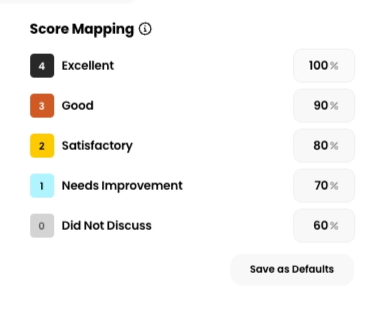
Adjusting these values allows you to align AI-generated assessments with your own grading philosophy while preserving the underlying rubric evaluations.
Save Score Mapping Defaults
If you regularly use the same score mapping across assignments, you can save it as your default.
There are two ways to manage Instructor Defaults:
- From an assignment: After configuring the Score Mapping, select Save as Defaults. These values will be used for future assignments you create.
- From Settings: If using the Breakout platform,navigate to Settings → Instructor Defaults to view, edit, or update your default score mappings at any time.
Note: Updating Instructor Defaults only affects new assignments. Existing assignments retain their current score mappings unless they are edited individually.